
This H3 Max tutorial walks through FreyaVideo's own generator, from choosing Max or Turbo to downloading a finished clip. Start with the H3 Max generator: both variants support text-to-video and image-to-video here. Sign in and review the credit estimate before generating.
The walkthrough below uses the controls checked on September 14, 2026. It includes an existing paid FreyaVideo test from September 5, with its original prompt, source images and settings. It is a single example, not a speed benchmark or a promise that another run will match it.
1. Choose Max or Turbo, then your input
Open the FreyaVideo H3 Max model page. The MiniMax H3 Max and MiniMax H3 Max Turbo buttons select the variant. Next choose Text to video for a scene from a written brief, or Image to video when you already have a starting image.
Keep the variant fixed while learning the controls. Standard MiniMax H3 is a separate model; do not mix its results into a Max-versus-Turbo comparison without labeling them.
For a first attempt, choose one short shot and one intended placement. A horizontal product clip needs different framing from a vertical social post. These steps run on FreyaVideo and use your FreyaVideo credits; you do not need a separate fal account.
2. Set the duration, resolution and prompt mode
Use the controls beneath the prompt box. The duration button displays a value such as 5S, and the resolution button displays 768P. In text-to-video mode, the aspect-ratio control displays a value such as 16:9. In image-to-video mode, compose your starting image in the framing you want to keep.
| FreyaVideo control | Starting choice | Why |
|---|---|---|
| Variant | MiniMax H3 Max | Keep the first comparison consistent |
| Duration | 5S | A small shot to inspect |
| Resolution | 768P | Match the real example below |
| Aspect Ratio, for text input | 16:9 or 9:16 | Match the intended placement |
| Advanced Settings → Prompt Expansion Mode | Balanced · Recommended | Use the default for the first attempt |
| Advanced Settings → Seed | Leave unchanged | Save the rest of the settings as your baseline |
Open the Advanced Settings icon beside the format controls to find Prompt Expansion Mode. FreyaVideo offers Fast, Balanced and Quality. Keep Balanced for the first attempt; changing the rewrite mode adds another variable to your comparison. Max and Turbo offer 5–15-second clips and 480P or 768P output in these controls.
3. Write one shot, then review the credit estimate
In the prompt box labeled Describe your vision..., describe the subject, one main action, camera movement, lighting and sound. Here is an optional text-to-video exercise:
A matte blue ceramic mug sits on an oak kitchen table beside a window. A thin stream of steam rises gently. The camera makes a slow, short push toward the mug, keeping its shape and handle visible. Soft morning light, quiet room ambience, no speech. One continuous shot.
This mug prompt is an exercise, not the prompt used for the real perfume video below. Before generating, decide what passes: one attached handle, smooth camera movement, and no person entering the scene.
Sign in, confirm the selected variant and check the credit estimate after setting the duration and resolution. Click Generate once. While the request runs, check its existing status before starting another paid attempt. A longer wait does not by itself mean the request failed.
4. Upload a starting image in Image to video
Switch to Image to video and open Advanced Settings. Upload your image under Input Image. Wait for its preview to appear before generating. You upload the file through this control; there is no need to paste an API image URL.
Use a clear image with the full subject visible, remove distracting edges and leave room for the intended camera movement. Describe motion in the prompt rather than asking the model to redesign the object. For a simple bottle shot, a small push-in is easier to review than an orbit that reveals unseen product details.
The optional Last Frame upload becomes available after you add the input image. Leave it empty for a simple image-to-video attempt, or follow the two-frame example in the next step.
5. Reproduce a real first-and-last-frame example
The following crystal perfume clip was generated on FreyaVideo on September 5, 2026 using H3 Max, Image to video, 5 seconds, 768P and Balanced prompt expansion. The saved file is 1344 × 768. This is an existing paid output, reused here to make the instructions verifiable.
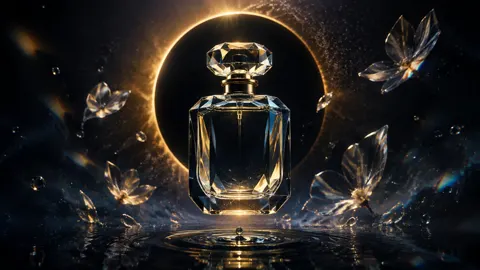
Download the original starting image and upload it under Input Image.
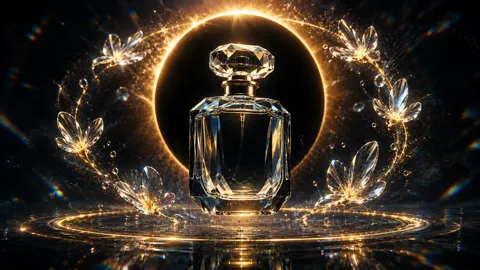
Download the original final image and upload it under Last Frame. These two images are inputs; the playable video above is the model output.
Paste the exact original prompt:
Start exactly from the first image and end on the supplied last frame. The crystal perfume bottle rotates smoothly while staying centered and structurally unchanged. Scattered glass petals sweep into the luminous orbit shown in the final frame; the small water ripple expands into a broad golden ring as droplets rise and the eclipse brightens. Use one slow cinematic push-in with seamless motion and sharp product focus. Native audio: water drop, crystal chimes and soft atmospheric bass.
Confirm Max, 5S, 768P and Balanced, review the current credit estimate, then generate. The original prompt describes the intended behavior; it does not certify perfect preservation. Inspect whether the bottle stays stable and how the motion connects the two frames. The supplied ending guides the destination without guaranteeing every intermediate detail.
For your own transition, keep the source and ending images at the same aspect ratio with compatible subject placement and lighting. Changing the object, background and camera position at once makes the transition harder to evaluate.
6. Review and download the result
Play the completed video with sound. Inspect the beginning, middle and end for changes to the silhouette, label, cap, background and framing. Listen for unwanted speech or distracting audio separately from the picture review.
Use the completed result's Download control, then open the saved file and play it through. Confirm its duration, framing and audio before putting it into an edit. Save the prompt, source images, variant and settings alongside the file. A preview that plays is useful, but you still need to check the downloaded deliverable.
7. Change one thing on the next attempt
| What you see | Next adjustment |
|---|---|
| Product bends or drifts | Reduce movement or use a clearer starting image |
| Camera travels too far | Ask for a small push-in or a locked view |
| Transition changes the subject | Use more compatible first and last frames |
| Label or logo changes | Reduce motion; restore an accurate graphic in editing if needed |
| Unwanted sound | Simplify the sound instruction or replace the track in editing |
| Request still waiting | Check its status before resubmitting |
| Download fails | Retry the completed result's download before generating again |
Keep previous attempts. Changing the source image, action, variant and duration together makes it harder to understand which change helped. For timing comparisons, record the whole wait and every attempt using the AI video generator timing guide. For model selection, see H3 Max vs Kling.
Start your next shot
Open the H3 Max and Turbo generator, choose your input and set a short shot. Review the credit estimate before every run and judge the result against the brief you wrote.
Sources and verification
FreyaVideo controls were checked on September 14, 2026. Provider background and frame-input behavior are documented in the fal H3 Max overview and image-to-video schema. These are technical references; the workflow above uses FreyaVideo's interface and credits.
Frequently asked questions
Where can I use H3 Max?
Both H3 Max and Turbo generate on FreyaVideo; check the selected variant and credit estimate before submitting. This tutorial uses FreyaVideo's own controls and does not require a separate fal account.
What settings should I try first?
Start with a five-second clip, 768P resolution and Balanced prompt expansion in Advanced Settings. Keep one subject and one camera movement. For text input, choose an aspect ratio that fits the intended placement.
How do I upload the first and last images?
Choose Image to video and open Advanced Settings. Upload the starting file under Input Image, then optionally upload an ending file under Last Frame. The ending guides the final view but does not guarantee exact details throughout the motion.
Is the example a real H3 Max output?
Yes. The crystal perfume video is an existing paid FreyaVideo generation from September 5, 2026: H3 Max, five seconds, 768P and Balanced prompt expansion. Its starting image, final image and original prompt are included. The separate mug prompt is an exercise, not a tested output shown here.
Does H3 Max offer native 1080p or 2K in these controls?
The FreyaVideo H3 Max and Turbo controls checked for this tutorial offer 480P and 768P, with durations from 5 to 15 seconds. Choose resolution in the generator rather than putting a resolution claim in the prompt.