GPT Image 2.5 Image Generator & Editor
Create and edit images with GPT Image 2.5 Flare on FreyaVideo. Add reference images and choose your quality, format and output count.
Sizes above 2560 × 1440 pixels are experimental.
JPEG and WebP only. Higher values preserve more detail and produce larger files.
Higher counts generate more outputs and consume more credits.
26 credits
Open GPT Image 2.5 in your workspace
GPT Image 2.5 Flare and Sunburst
Replicate positions Flare as the fast option for everyday generation and editing. Start here for product concepts, campaign drafts and repeated prompt iteration.
Use Sunburst as an alternative for demanding compositions and image editing. Compare the same prompt and quality setting before choosing which result fits your project.
Upload a source image and describe one specific change. Multiple references can guide subject, composition or style. Always inspect fine text and unchanged areas after an edit.
Create a scene. Refine the details.
Generate images from a description or edit an existing photograph with GPT Image 2.5. Use Flare for everyday creative iteration, or compare Sunburst on the same brief. Add up to five reference images in FreyaVideo and describe what should change and what should stay.
Choose the settings for your next image
Both variants support text prompts and reference images. FreyaVideo starts at high quality and one output. Choose an aspect ratio, auto, or a pixel size up to 4K. Set the background and JPEG/WebP compression quality, then download PNG, JPEG or WebP. Sizes above 2560 × 1440 pixels are experimental.
OPEN GENERATORGenerate a scene. Change the light or season.
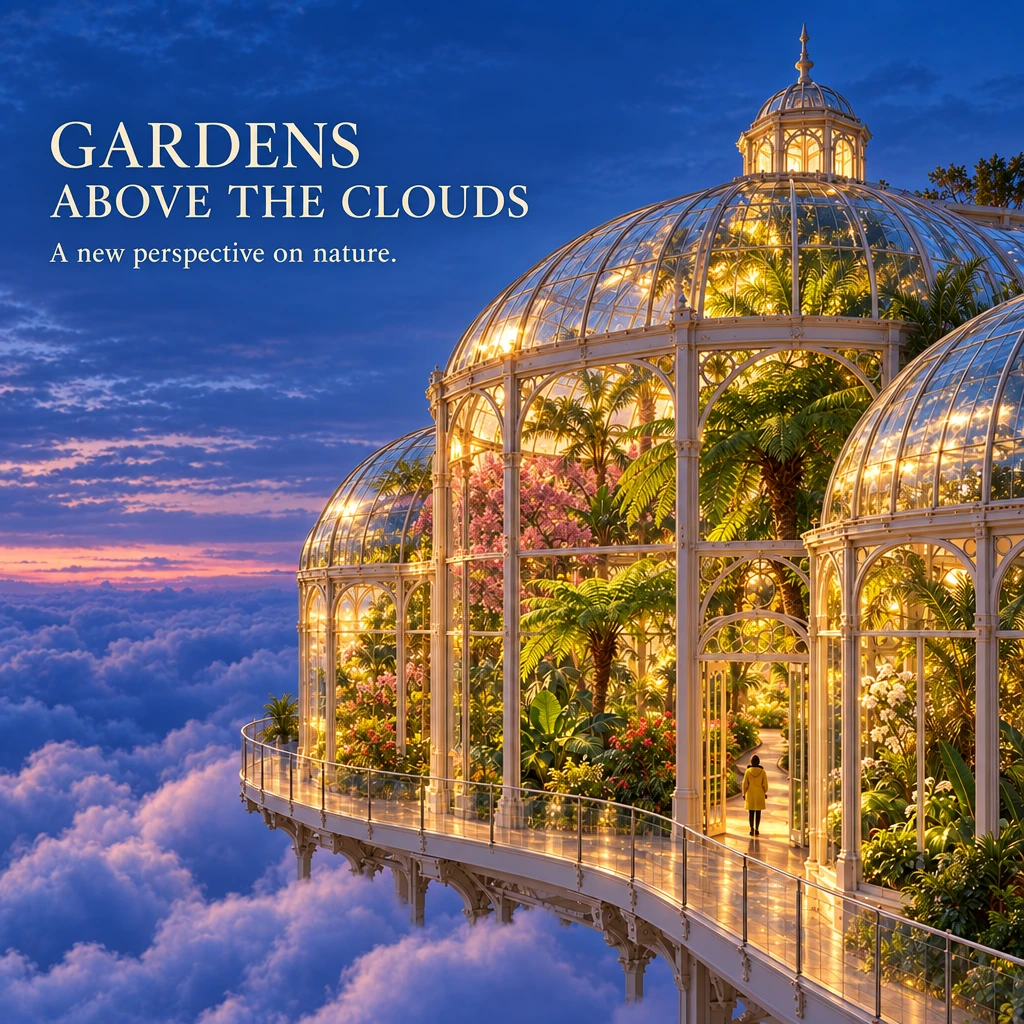
These are real generation tests from the FreyaVideo workspace and model page. Flare changes a cloud-top conservatory from sunrise to blue hour; Sunburst changes a desert railway into a winter scene. Each pair starts with a generated original, then edits that image. The two workflows use different prompts and are not a controlled model comparison.
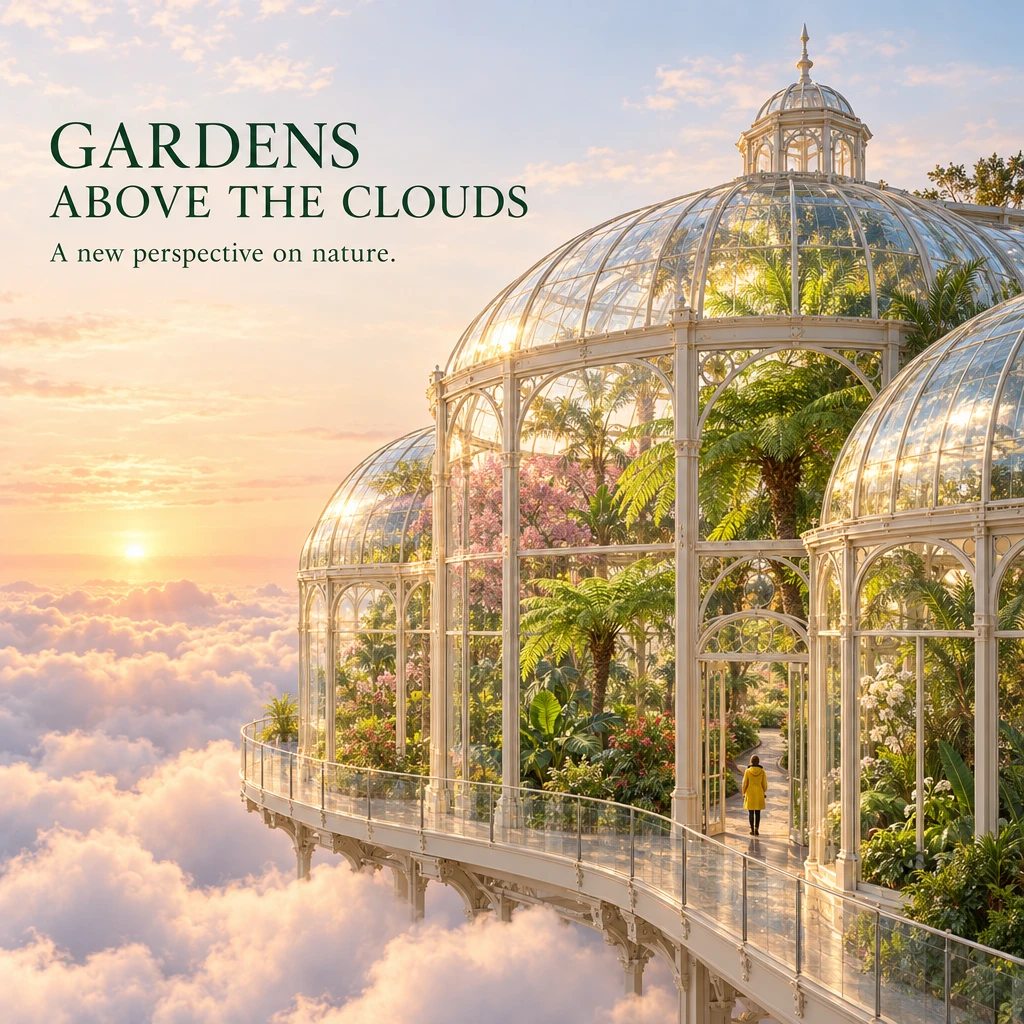 FLARE · SUNRISE ORIGINALFLARE · BLUE HOUR EDIT
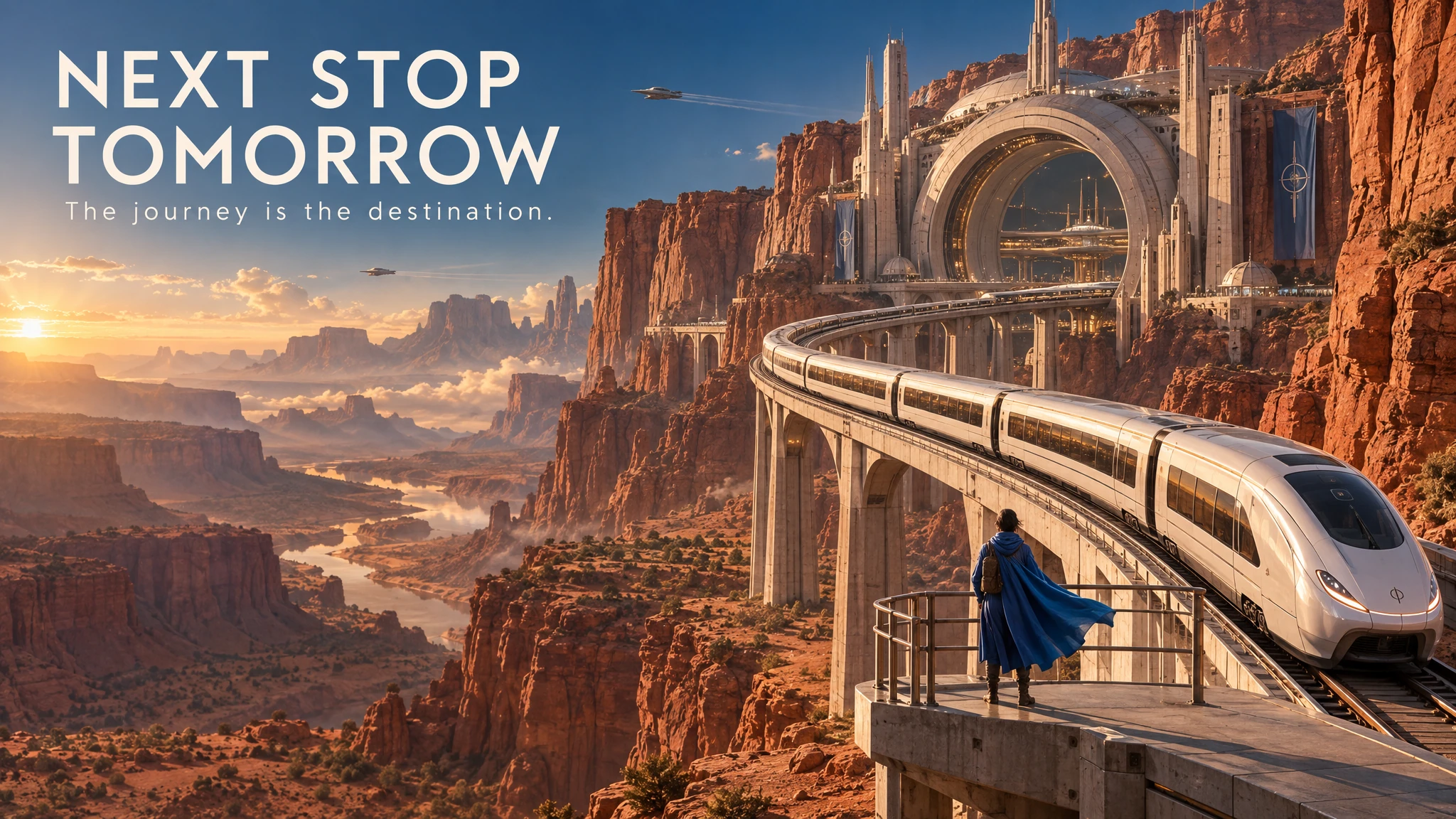 SUNBURST · DESERT ORIGINAL
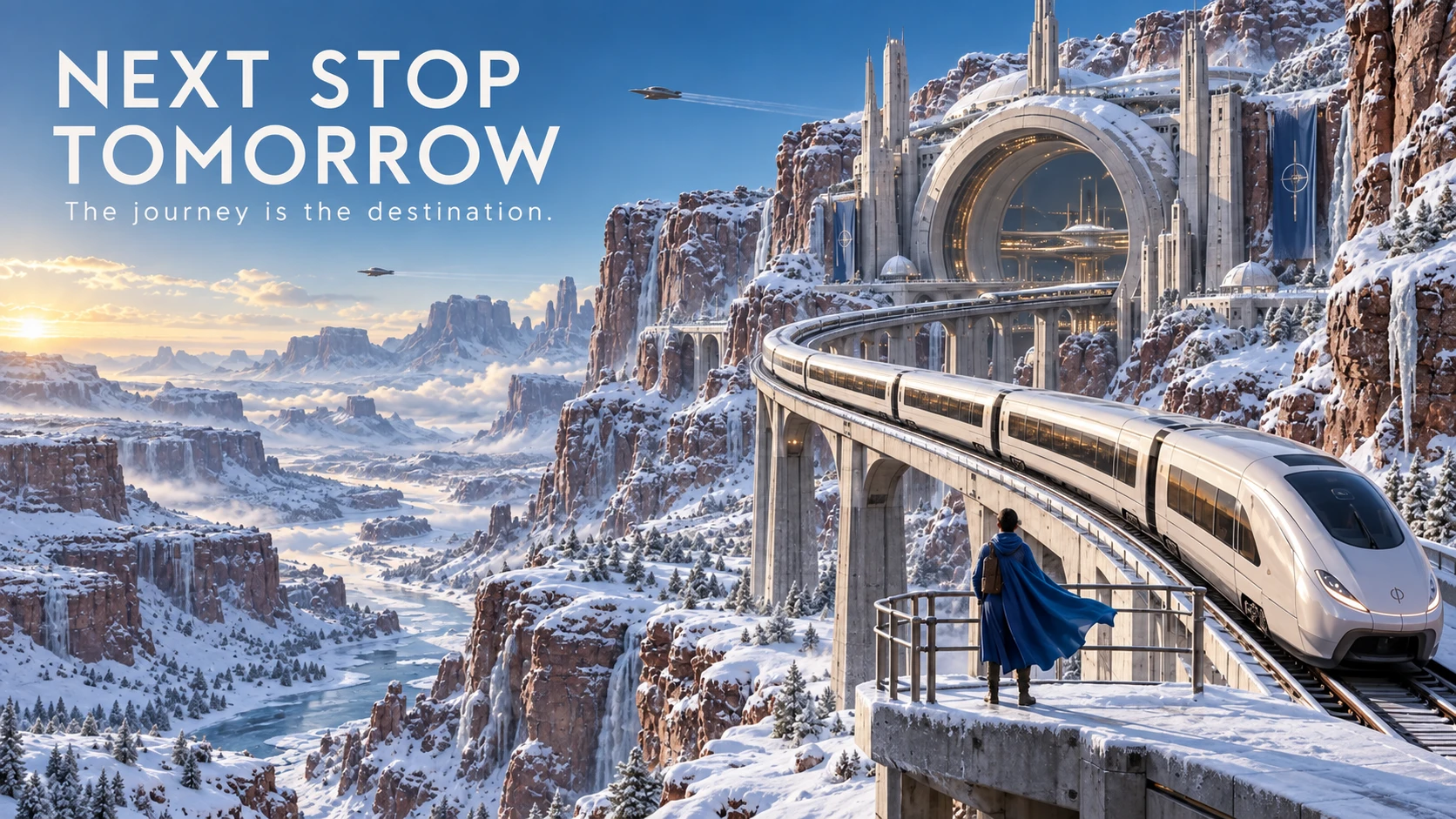 SUNBURST · WINTER EDIT
Read our launch discussion and a practical three-edit comparison protocol.
READ MORE →Common Questions
GPT Image 2.5 is an OpenAI image model family available here through Replicate. Flare and Sunburst accept text prompts and image references for image generation and editing.
Start with Flare for everyday work. For an important image, try the same prompt in Sunburst and compare composition, typography and editing consistency. Both variants use the same published credit schedule on FreyaVideo; quality and output count determine the quote.
At launch, each output costs 3 credits at low, 10 at medium, 26 at high, 50 at xhigh or auto, and 100 at max. Multiply by the number of outputs. The generator shows the current quote before submission. High and one image are the defaults; auto is a more expensive option.
Yes. Add up to five JPEG, PNG or WebP references in FreyaVideo. Explain the role of each image, specify the change and list what must remain. Supplying a reference routes the request as image editing.
No. Auto has its own price and currently costs the same as xhigh. Choose high explicitly if you want the default high-quality quote.
Timing depends on the model, quality, input images and provider load. The timer shows elapsed time, not a completion guarantee. If a generation fails, the existing task settlement flow handles credit refunds.
Understanding GPT Image 2.5
GPT Image 2.5 combines text-to-image and image editing in one workflow. On FreyaVideo, choose a variant, write your prompt, and optionally add reference images. The same model choices are also available in the main text-to-image and image-to-image workspaces.
Core Capabilities
Try product photography, poster concepts, illustrated scenes or changes to a source photograph. For typography, put the exact wording in quotes. For edits, request one change at a time and compare the preserved regions with the source.
Technical Foundation
Requests run through FreyaVideo’s existing Replicate integration. The service sends reference images with the editing request and stores completed results for your workspace. You do not need to supply an OpenAI API key.
Quality Assurance
Quality controls cost and processing effort. Start at high for a finished draft, or use low and medium while exploring a prompt. Xhigh and max are optional higher-cost settings. Increasing quality does not guarantee exact text, identity preservation or a successful edit.
How It Works
Choose a model
Select Flare or Sunburst in the generator.
Describe the image
Specify subject, layout, lighting and exact text.
Add references
For an edit, upload your source and describe what to change and preserve.
Check the quote and generate
Choose quality, count and format. Review the credit total before starting.
Getting the Most from GPT Image 2.5
Use a repeatable brief to compare the two variants.
Keep the comparison fair
Use the same prompt, source images, ratio and quality for both models.
Inspect small details
Zoom in on lettering, product edges and shadows before publishing an image.
Save your source
Return to the original source if successive edits drift away from the intended composition.