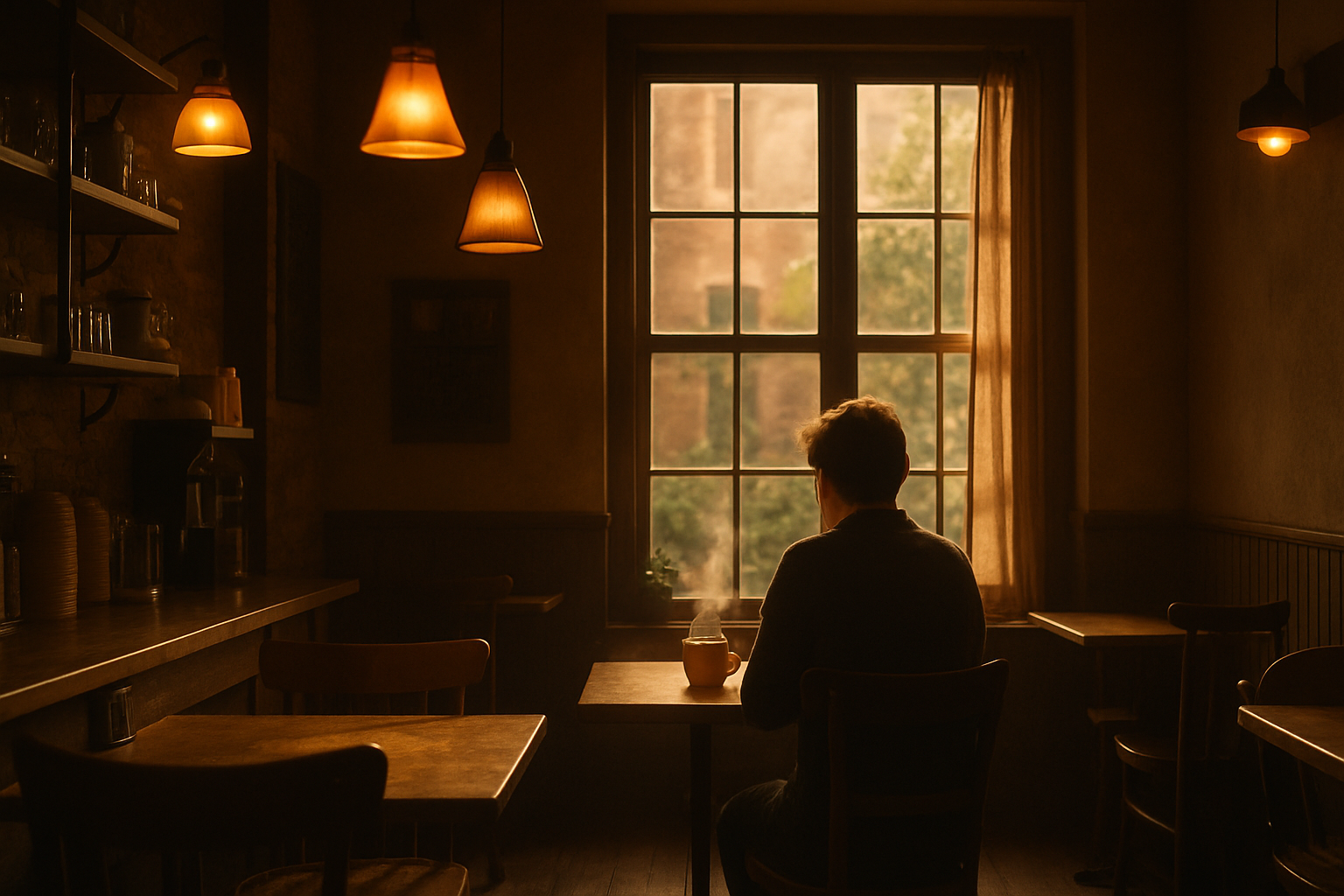
Product photo
Launch clips, PDP media, paid social tests
Use a clean product image with a clear hero subject, readable labels, and enough empty space for motion.
Upload one image, describe how it should move, and generate a short AI video in FreyaVideo.
Upload one image
Start from a product photo, portrait, poster, flyer, or social visual that already has a clear subject.
Add a motion prompt
Describe camera movement, light, parallax, or small subject motion while preserving the original image.
Generate a short video
Choose output settings in the main image-to-video workspace and generate a short MP4 video.
IMAGE TO VIDEO WORKFLOW
FreyaVideo gives users a direct path from a single visual asset to short video output without forcing a full editing workflow. No timeline editing, no monthly editor, just upload, prompt, generate.
Source image fit
The broad turn-image-into-video intent covers several practical inputs, as long as the motion supports the original frame.
Launch clips, PDP media, paid social tests
Use a clean product image with a clear hero subject, readable labels, and enough empty space for motion.
Profile videos, creator intros, memory clips
Choose a portrait with stable lighting, a visible face, and room for subtle eye or head movement.
Event teasers, trailer cards, announcement videos
Works best when the headline, date, and visual hierarchy are already legible before motion is added.
Party promos, retail sales, local campaign videos
Choose flyer designs with clear sections, strong contrast, and key details that should stay readable.
Reels, stories, ad variations, organic posts
Use a finished campaign visual with one main subject, a clear safe area, and a strong final frame.
Motion prompt examples
Use these prompt patterns as a starting point. Keep the motion simple, then name the details the AI should preserve.
Make one product image feel like a short launch clip.
slow camera push-in, soft highlight sweep across the product, keep label readable, preserve packaging shape
Best for packaging shots, product renders, and ecommerce hero images.
Add subtle life to a person without changing identity.
subtle blink, gentle head turn, soft breathing motion, preserve identity and lighting
Best for profile videos, creator intros, and memory clips.
Turn a designed poster into a readable promo video.
gentle parallax, subtle light sweep behind the headline, slow camera drift, keep all text readable
Best for event posters, announcement cards, and trailer graphics.
Add motion while keeping dates and callouts legible.
floating paper texture, slight depth between design layers, rhythmic camera drift, preserve date and callout text
Best for party promos, sale flyers, and local campaign assets.
Make a vertical social asset feel less static.
clean vertical motion, foreground depth, soft background movement, strong final frame for a social ad
Best for reels, stories, ad tests, and organic post variations.
Use cases
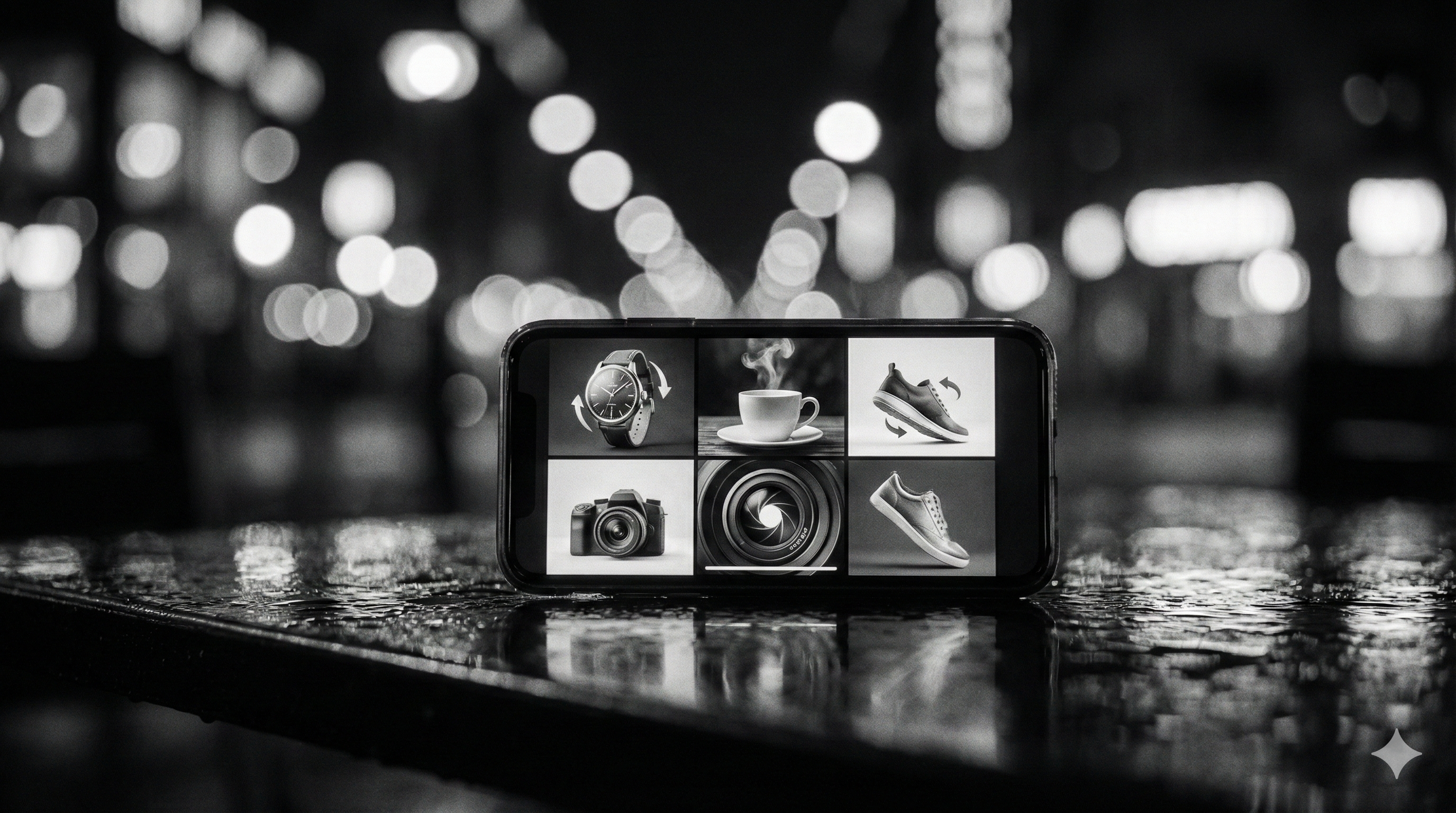
Add camera movement and light sweeps while keeping labels, packaging, and product shape readable.
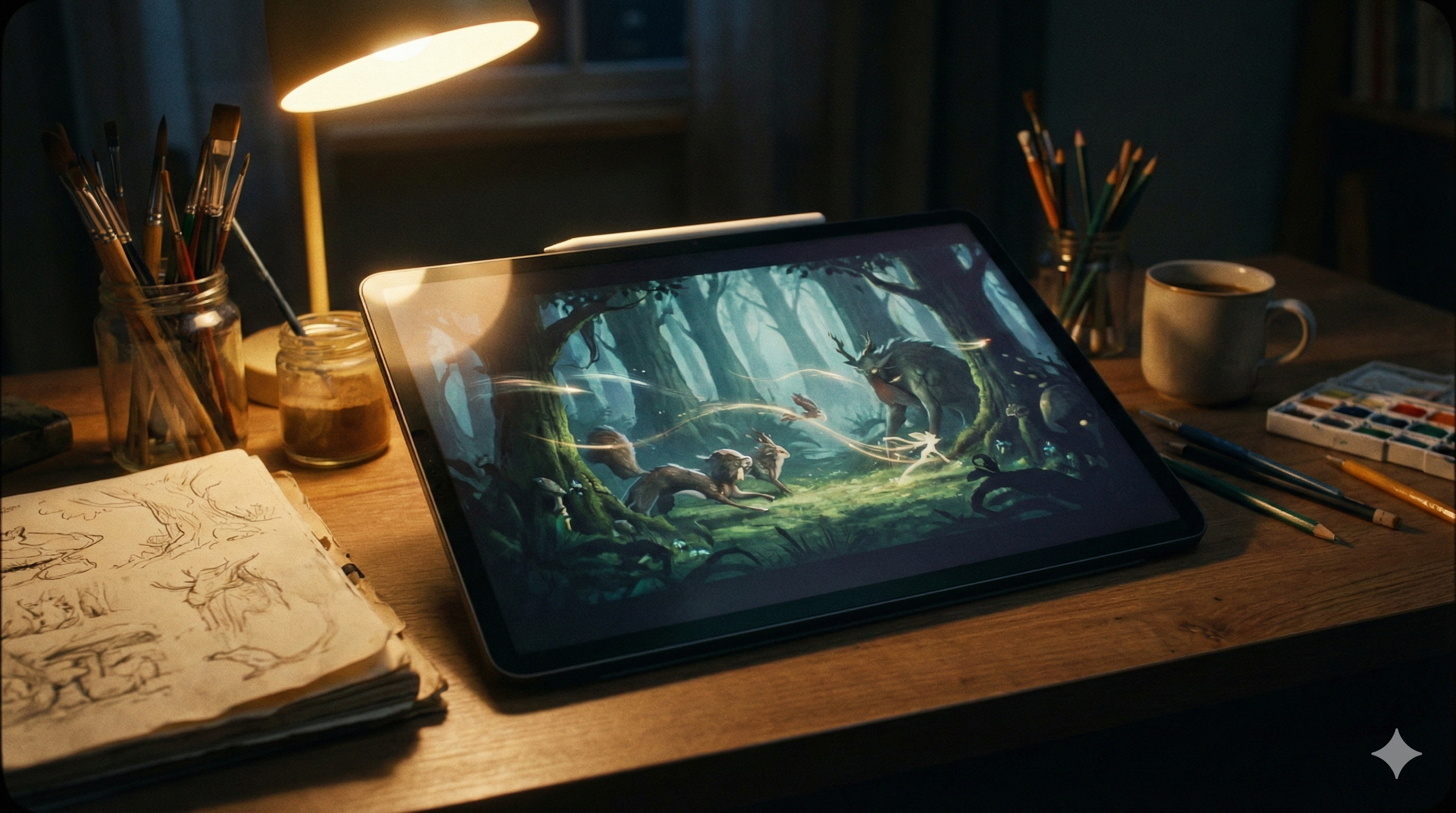
Use natural motion such as blinking, breathing, or a subtle head turn without changing the person.
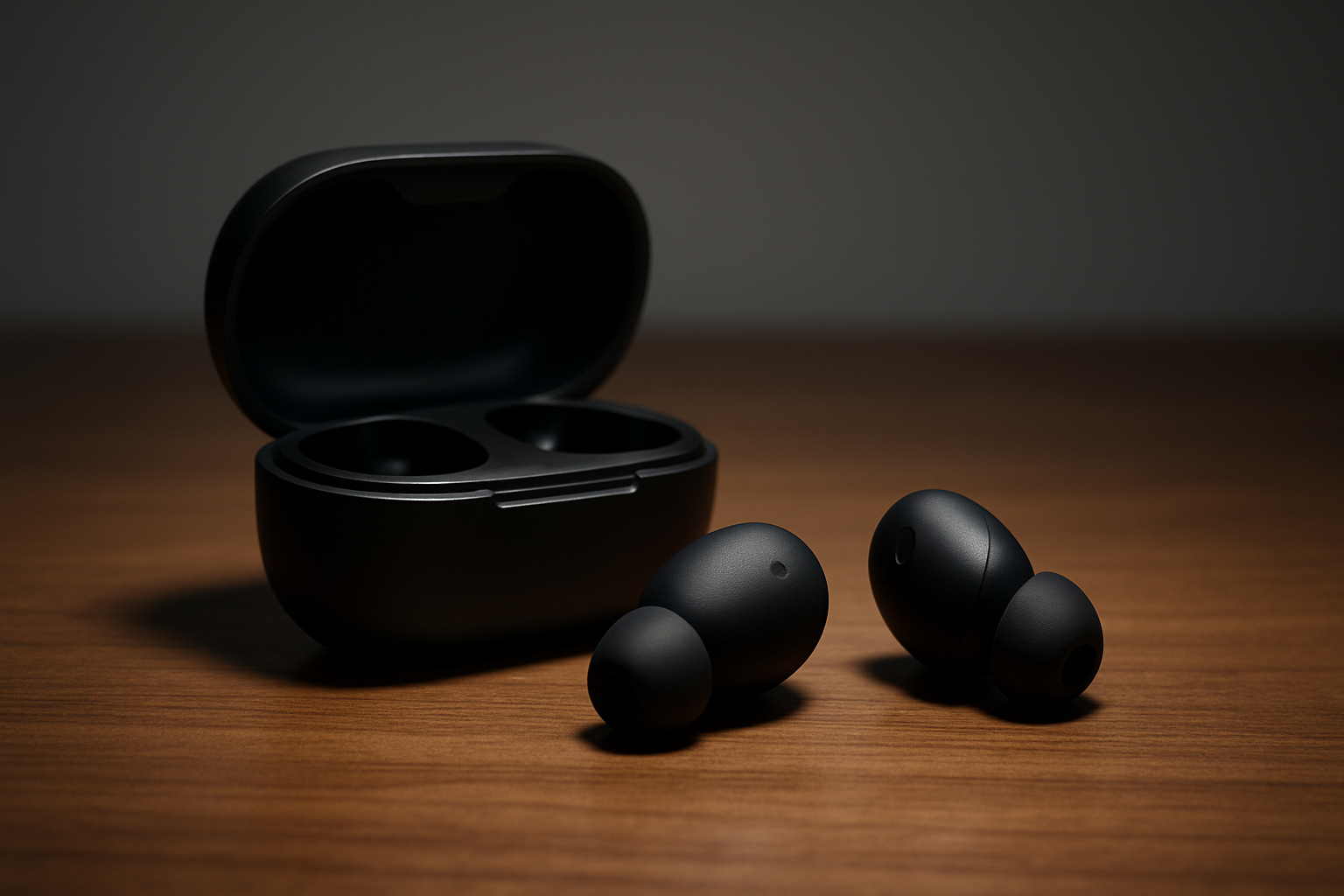
Generate a short promo video while preserving the headline, layout, and event details.
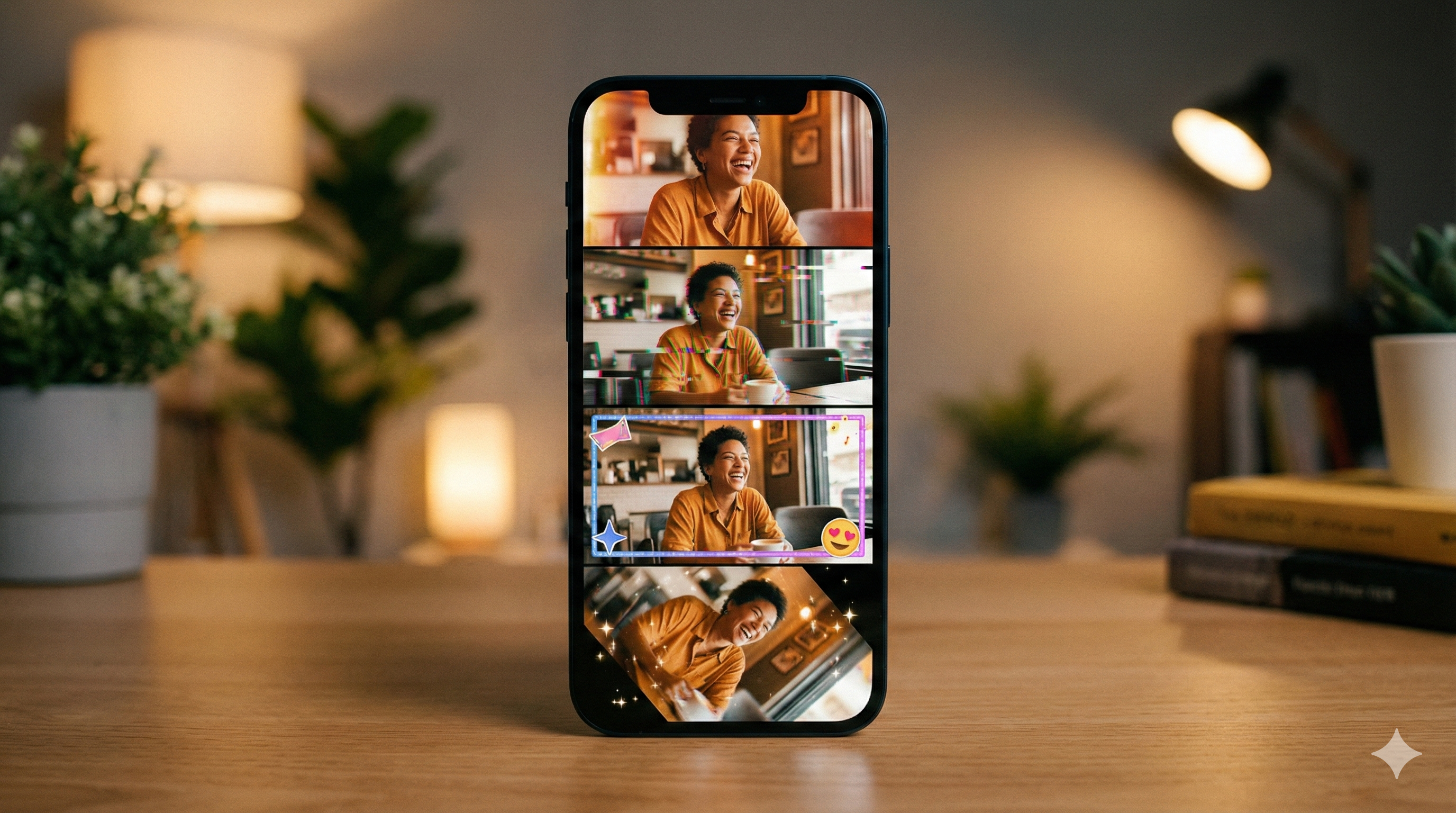
Repurpose static campaign images into vertical videos for reels, stories, and paid creative tests.
Choose a workflow
Different pages fit different starting points. Use this guide to plan how one image should move, then jump into the tool or a more specific workflow when you are ready.
Generate from any image
Upload a product photo, portrait, poster, flyer, or campaign image, choose settings, and generate the final video.
Animate a photo
Use this when the source is a portrait, old photo, travel shot, pet photo, or personal memory.
Make product videos
Use this when the source image is a product photo and the output needs to support ecommerce, ads, or PDP media.
Plan the motion
Use this page when you want examples, prompt language, and a quick way to decide how one image should move.
FAQ
Yes. Upload one image, add a motion prompt, choose your output settings, and generate an MP4 video in the image-to-video workspace.
It overlaps with photo to video AI, but the workflow also works for product images, posters, flyers, and social visuals.
Yes. Product images are one of the best inputs. Upload a clean product photo, describe a simple camera push-in or highlight sweep, and tell the AI to keep packaging text readable.
FreyaVideo is built for commercial workflows such as product clips, event promos, and social ads. Make sure you have rights to the source image you upload.
No. FreyaVideo uses credits, so you can generate when you need output instead of committing to another monthly editor.
Credit cost depends on the selected model, duration, resolution, and settings. The image-to-video workspace shows the generation setup before you run it.
Use this guide to choose a motion direction, then continue to the FreyaVideo Image to Video tool.