Content policy: Adult sexual content and explicit nudity are not allowed. By using FreyaVideo you agree to follow our Content Policy. Content Policy
Video to VideoNEW
-- CREDITS
Seedance 2.5

Edit the motion and content of a source clip, or extend it beyond the original cut.

ADAPTIVE
0/2000

MP4 or MOV · 4–30s for edit · 2–30s for extend

0/1

Seedance 2.5 does not accept direct image or video references containing real-person faces. Use fictional characters, products, scenes, or other supported assets.

Ready for Prompt
00:00
00:02
00:04
00:06
00:08
AI Video
AI Image
Select a function to start creating
VIDEO TO VIDEO AI

Video to Video AI Generator

Upload an existing video, tell the AI what to change, and generate a new version without reshooting or editing frame by frame.

VERIFIED VIDEO-TO-VIDEO OUTPUTS

Edit changes the shot. Extend continues it.

These paid FreyaVideo runs show the two workflows with their actual source clips, prompts, settings, and measured outputs.

EDIT VIDEO

Turn a lunar walk into a Martian dust storm

The source already had the right first-person walk and camera path. Edit Video changed the environment while keeping that motion structure recognizable.

Real paid FreyaVideo generation. Source: 8.000s at 1080×608. Output: 7.712s at 1278×720 with an AAC audio track whose measured playback is quiet.

SOURCE CLIP
8.000s · 1080×608
SEEDANCE 2.5 OUTPUT
7.712s · 1278×720

PROMPT USED

Transform the lunar environment into a cinematic red Martian landscape during a gentle dust storm. Preserve the original first-person walking motion, camera path, timing, framing, astronaut gloves and boots, and existing scene transitions. Replace the gray lunar ground and craters with rust-red sand, layered Martian rocks, drifting fine dust, and a pale sun behind a hazy salmon-colored sky. Keep the astronaut and all motion physically stable and coherent. Do not add extra characters, text, logos, cuts, or additional camera shake. Do not warp the astronaut’s body or change the clip length.

REAL GENERATION SETTINGS

Workflow
EDIT VIDEO
Source
8.000s · 1080×608
Duration
Auto (source length)
Resolution
720p
Aspect ratio
Adaptive
Format
MP4
Generate audio
On
Return last frame
Off
Web Search
Off
Watermark
Off
Priority
0
Execution Expires After
48 hours (172800 seconds)

VERIFIED RESULT

The gray lunar terrain became rust-red Martian ground with drifting dust. The walking motion, gloves, boots, camera path, timing, and existing cuts remained broadly stable. An AAC audio track is present, but its playback level is quiet.
EXTEND VIDEO

Continue a phone shot into a finished product hero

The 2.2-second source ends with a phone rotating on its dock. Extend Video begins at that ending and generates a separate four-second continuation.

Real paid FreyaVideo generation. Source: 2.200s at 1280×720. Output: exactly 4.000s at 854×480 with no audio.

SOURCE CLIP
2.200s · 1280×720
SEEDANCE 2.5 OUTPUT
4.000s · 854×480

PROMPT USED

Continue seamlessly from the exact final frame without a cut. The phone keeps rotating slowly clockwise on the charging dock while the camera makes a gentle forward dolly. The black screen wakes into an elegant abstract blue-to-violet luminous gradient with no interface or text. A thin cyan light traces the phone’s metal edge and flows into the charging dock, while the background gradually darkens into a premium studio. Preserve the exact phone and dock shape, proportions, tabletop position, rotation speed, reflections, and shadows. End on a clean centered product hero shot. Do not add hands, people, logos, letters, extra devices, morphing, floating objects, sudden cuts, or camera shake.

REAL GENERATION SETTINGS

Workflow
EXTEND VIDEO
Source
2.200s · 1280×720
Duration
4s
Resolution
480p
Aspect ratio
Adaptive (16:9 result)
Format
MP4
Generate audio
Off
Return last frame
On
Web Search
Off
Watermark
Off
Priority
0
Execution Expires After
24 hours (86400 seconds)

VERIFIED RESULT

The continuation starts from the source ending rather than replaying the clip. The phone keeps rotating, its screen wakes, cyan edge light reaches the dock, and the shot settles into a centered product frame without a hard cut.

01 / UPLOAD

Upload the Source Video You Want to Transform

Choose an MP4 or MOV clip. Editing accepts a 4–30 second source; extending accepts a 2–30 second source and continues from its final moment.

A video to video AI generator starts from an existing clip instead of creating every frame from scratch. The source video provides timing, movement, framing, and scene structure; your prompt tells the model what to restyle, replace, relight, or reinterpret.

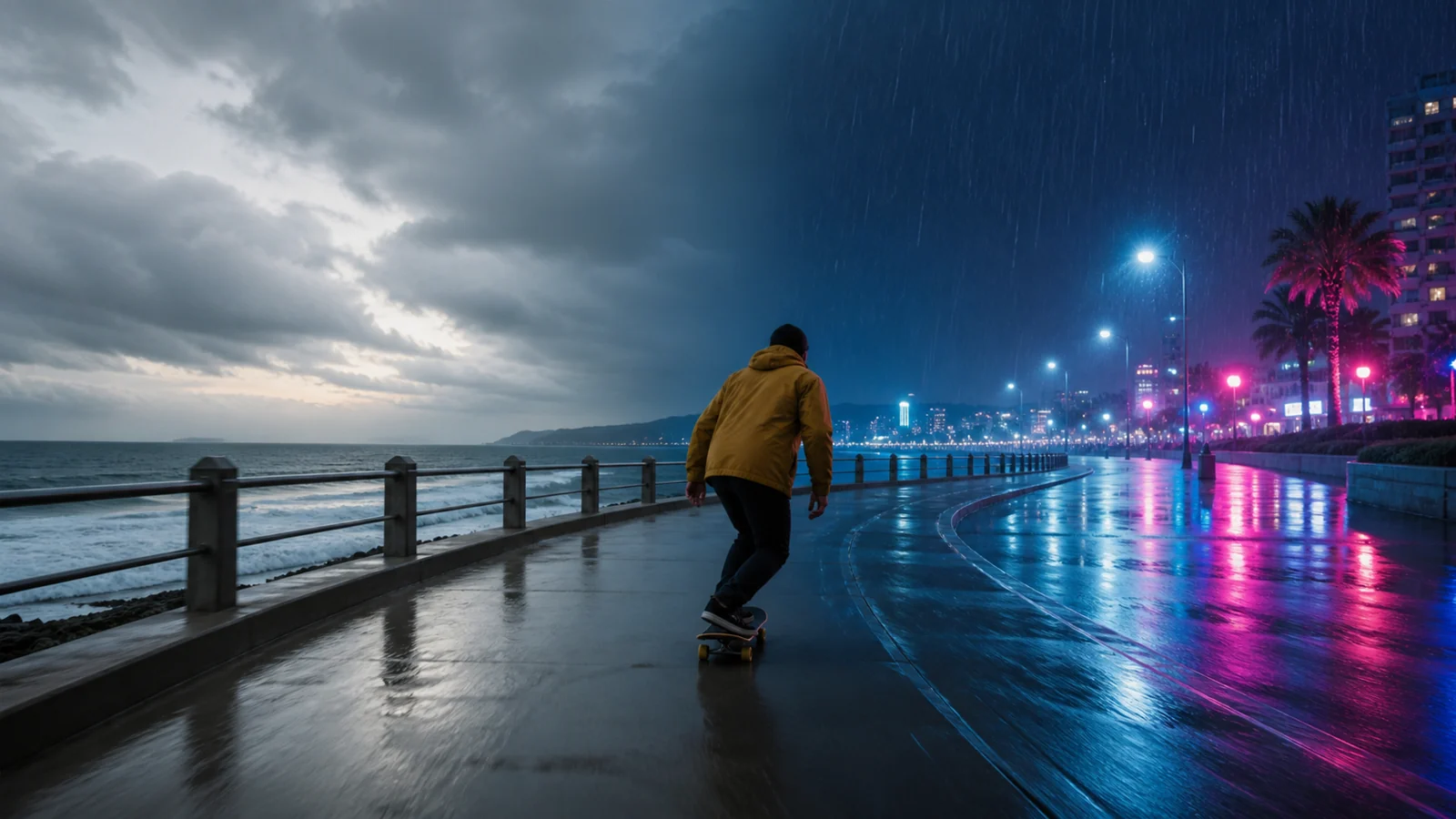
Source video transformed from daylight into a rainy night scene
FREYAVIDEO WORKFLOW PREVIEW · NOT OFFICIAL MODEL OUTPUT
02 / CHOOSE

Choose Edit Video or Extend Video

Use Edit Video to change the existing shot with an output usually close to the source length. Use Extend Video when the original clip should continue into a new action, camera move, or scene.

FreyaVideo offers two distinct workflows. Edit Video regenerates the clip according to natural-language direction and usually returns an output close to the source duration, although it can be up to about 0.4 seconds shorter. Extend Video continues the source beyond its final frame, adding a new 4–30 second segment or choosing duration automatically.

Video edit and extend controls in FreyaVideo
FREYAVIDEO WORKFLOW PREVIEW · NOT OFFICIAL MODEL OUTPUT
03 / DESCRIBE

Describe Only the Changes or Continuation

State what must remain, what should change, and how motion should feel. For an extension, describe what happens immediately after the source ending so the transition has a clear direction.

This workflow is useful when the original motion already works but the creative direction needs to change. You can explore a new environment, weather, art direction, wardrobe, product treatment, or continuation without organizing another shoot or rebuilding a timeline frame by frame.

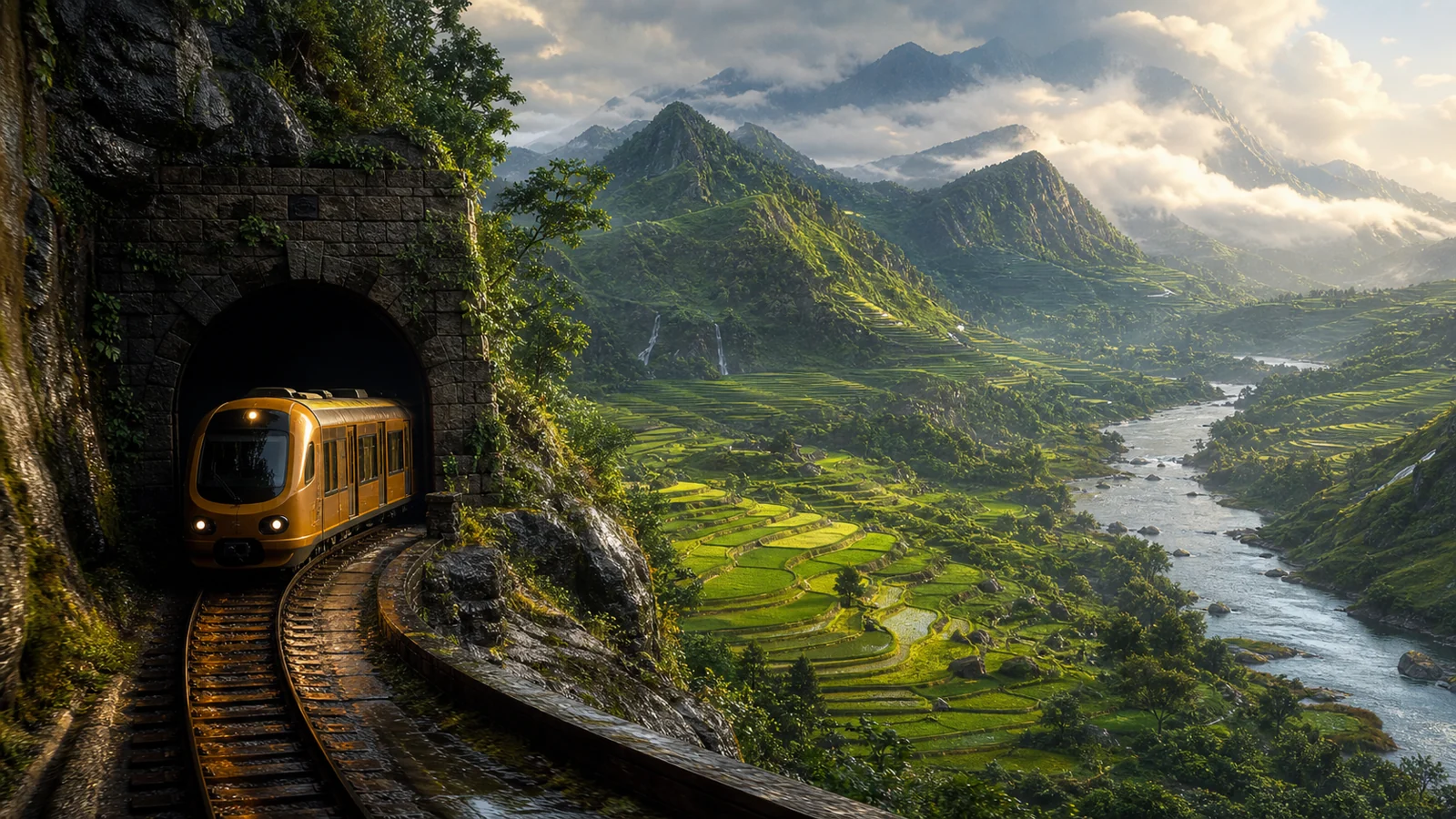
AI video extension continuing a train shot into a new landscape
FREYAVIDEO WORKFLOW PREVIEW · NOT OFFICIAL MODEL OUTPUT
04 / GENERATE,

Generate, Review Continuity, and Refine

Check motion, subject identity, lighting, and the transition point. Tighten the prompt around one transformation at a time when the first result changes too much.

Video-to-video AI edit workflow preview
FREYAVIDEO WORKFLOW PREVIEW · NOT OFFICIAL MODEL OUTPUT
TRANSFORMATION PROMPTS

Direct the Change, Not the Whole Shoot

Use these prompts to preserve the source structure while changing art direction or continuing the final shot.

01

Change Weather and Lighting

Keep motion while transforming the environment.

Keep the skateboarder, camera path, timing, and coastal location. Transform the daylight scene into a rainy neon night with wet pavement reflections, realistic rainfall, blue and magenta city light, cinematic contrast, consistent body motion.

02

Restyle a Product Clip

Create a new campaign treatment from existing footage.

Preserve the product shape, hand movement, and shot composition. Restyle the set as a premium monochrome studio with brushed metal surfaces, soft directional light, restrained camera grain, and clean luxury advertising art direction.

03

Continue the Final Shot

Describe what happens immediately after the source ends.

Continue from the exact final frame. The yellow train exits the tunnel and follows the curved track into a vast green valley. The camera rises slowly to reveal terraces, rivers, and distant mountains in warm morning light. Maintain speed and perspective continuity.

USE CASES

Transform Footage You Already Have

Creators & Art Directors
Reinterpret the visual treatment of existing footage while using its movement, timing, and framing as the foundation.
Brands & Marketing Teams
Test alternative environments, lighting, seasonal direction, or product presentation from the same base clip.
Editors & Filmmakers
Continue a camera move, subject action, establishing shot, or transition beyond the original ending for a longer usable edit.
Studios & Production Teams
Explore weather, time-of-day, environment, wardrobe, or stylized treatment before committing to a manual VFX workflow.
HOW IT WORKS

From Source Clip to New Version

1

Upload the Source Video You Want to Transform

Choose an MP4 or MOV clip. Editing accepts a 4–30 second source; extending accepts a 2–30 second source and continues from its final moment.

2

Choose Edit Video or Extend Video

Use Edit Video to change the existing shot with an output usually close to the source length. Use Extend Video when the original clip should continue into a new action, camera move, or scene.

3

Describe Only the Changes or Continuation

State what must remain, what should change, and how motion should feel. For an extension, describe what happens immediately after the source ending so the transition has a clear direction.

4

Generate, Review Continuity, and Refine

Check motion, subject identity, lighting, and the transition point. Tighten the prompt around one transformation at a time when the first result changes too much.

WORKFLOW SPECS

Prompt-Guided Video Transformation

Output and Resolution

Export a 480p or 720p AI-edited or extended clip in MP4 or MOV format.

MP4MOV480p720p

Source Framing

Video editing and extension follow the source clip aspect ratio automatically to protect composition and continuity.

Adaptive to source

Transformation Modes

Restyle footage, change a scene with natural language, or continue the action beyond the original ending.

RestyleEditExtend

What Video-to-Video AI Actually Changes

A video to video AI generator uses an existing clip as the structural anchor. The source supplies timing, movement, framing, and composition while a prompt directs the model to regenerate the visual content.

This is more than a color filter but less deterministic than a traditional frame-accurate editor. It is best for creative transformations, campaign variations, previsualization, and shot extensions where a new generated result is acceptable.

How to Prompt Video-to-Video AI

State what must remain before describing what should change. A focused instruction such as preserving the subject, camera path, and timing while changing weather and lighting gives the model clearer boundaries.

Fast motion, heavy occlusion, several competing subjects, tiny text, and long complex shots can drift. Transform one creative dimension at a time, review continuity, and refine the next generation.

Video to Video AI Generator FAQ

What is a video to video AI generator?

A video to video AI generator transforms an existing clip according to a prompt. The source video anchors timing, motion, framing, and scene structure while the model regenerates visual content or continues the shot.

What is the difference between Edit Video and Extend Video?

Edit Video regenerates the existing clip and usually returns an output close to the source duration, although the result can be up to about 0.4 seconds shorter. Extend Video begins from the source ending and creates an additional 4–30 seconds, or lets the model choose an automatic extension length.

How is video-to-video different from a traditional video editor?

A traditional editor cuts, grades, composites, or adjusts recorded frames directly. Video-to-video AI regenerates the shot from the source structure and your prompt, which is useful for conceptual changes but is not a frame-accurate replacement for manual editing software.

Will video-to-video AI preserve the original motion?

The source clip provides strong motion and timing guidance, but the output is still generative. Clear prompts that name what must remain and focus on one transformation usually preserve continuity better than broad instructions that change everything at once.

What source videos can I upload?

Use MP4 or MOV. Edit Video accepts 4–30 second clips; Extend Video accepts 2–30 second clips. Visual inputs must be 300–6000 pixels per side, use a 0.4–2.5 width-to-height ratio, and contain 409,600–8,295,044 total pixels. The interface checks these constraints before upload.

Can I upload source footage with a real person’s face?

No. The current Seedance 2.5 direct-upload workflow does not accept source videos containing real-person faces. Use fictional characters, products, environments, or other supported footage instead.

Can AI extend a video beyond its final frame?

Yes. Extend Video uses the source ending as the transition point and generates what happens next. Describe the immediate next action, camera direction, environment, and continuity details for a more coherent extension.

What resolution and format does the video-to-video generator support?

Seedance 2.5 video editing and extension support 480p or 720p output in MP4 or MOV. The aspect ratio follows the source video automatically.

Are the examples on this page real Seedance outputs?

The Edit and Extend comparisons labeled as verified are real paid Seedance 2.5 generations made on FreyaVideo. Each includes its source clip, exact prompt, actual settings, measured output, and result notes. Other images labeled as workflow previews are original explanatory visuals, not official ByteDance or Volcengine examples.

Can I use an AI-edited video commercially?

Commercial use depends on your rights to the source video and other inputs, the generated content, your account plan, and applicable law. Only upload footage you are authorized to transform and review FreyaVideo terms before publishing client or campaign work.

Transform Your Existing Footage

Upload supported footage without real-person faces, choose Edit or Extend, and describe the new creative direction in plain language.

RELATED TOOL

Also try: AI Reference to Video Generator Use this when several images, clips, or audio files should guide a newly composed shot.

Also try: Image to Video AI Use this when a still image should become the first frame of a new animation.

Also try: Text to Video AI Use this when you want to generate a shot from a prompt without source footage.

Also try: Seedance 2.5 Model Guide Review the model behind editing and extension together with its other supported workflows.